
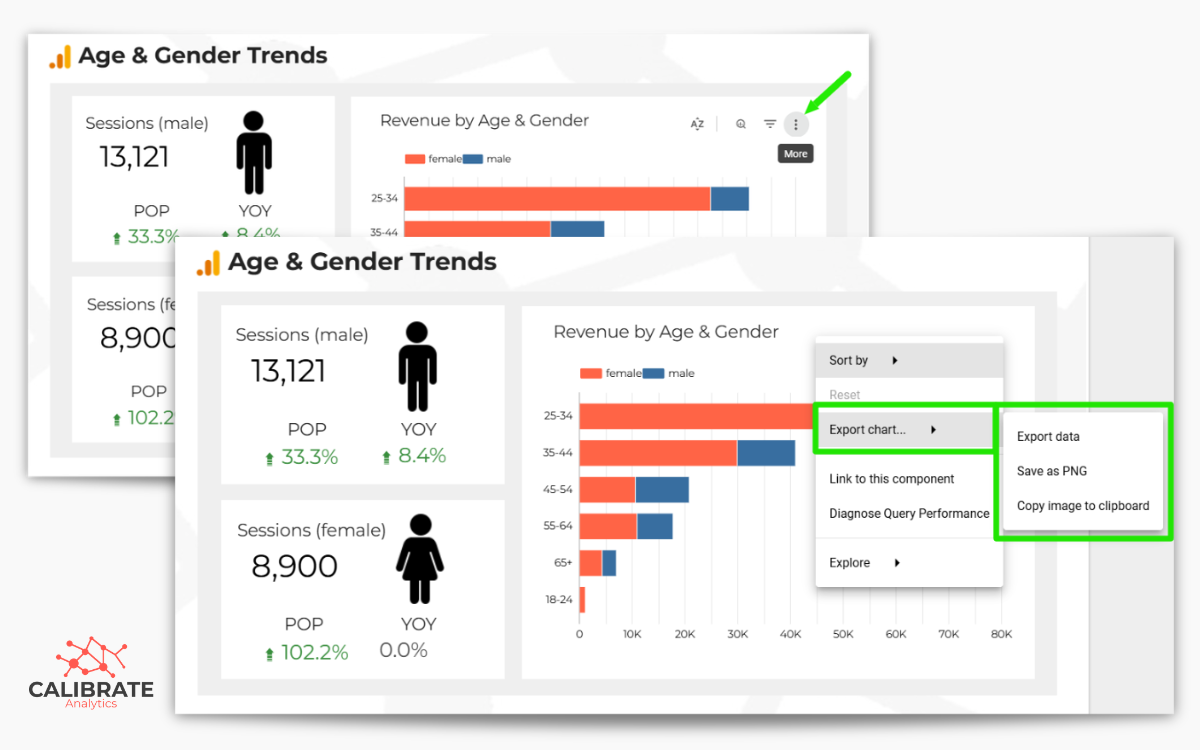
Looker Studio now offers native options to export individual charts as high-quality PNGs or copy them to the clipboard, eliminating the need for manual screenshots in reporting workflows.
Be honest. How much time do you lose every week trying to grab the perfect screenshot of a chart?
Looker Studio is great for building interactive dashboards, but pulling a single chart out of a report to use in a presentation or chat usually means manual screenshots, awkward cropping, and inconsistent image quality.
That process just got much easier!
Looker Studio now includes native export options for individual charts, including the ability to save visuals as PNG files or copy them directly to your clipboard. It's one small update that saves several steps.
The Feature: Simple, Clean Export Options
The new functionality is straightforward. You can now open a chart's menu and choose from three options:
- Export data, which downloads the underlying dataset from the chart
- Save as PNG, which saves a high-resolution image file
- Copy image to clipboard, which lets you instantly paste the chart into another application
For the purposes of sharing visuals, the PNG and clipboard options are the real time savers. They generate a clean, properly cropped image of the chart without the extra steps that screenshots usually require.
Why This Matters for Reporting Workflows
On the surface this looks like a small update. In practice, it can remove a surprising amount of manual time from common reporting tasks.
Building Executive Presentation Decks
Preparing slides for weekly meetings or quarterly reviews often means pulling several charts into Microsoft PowerPoint or Google Slides.
Instead of the usual screenshot and resize routine, you can export the chart as a PNG or copy it directly into your slides. The result is faster slide building and cleaner visuals.
Streamlining Monthly Performance Reports
Many teams still write summaries alongside dashboards using Google Docs or Microsoft Word.
Embedding a few key visuals next to your commentary makes the report easier to understand. With the new export options, dropping those visuals into a document takes a couple seconds.
Sharing Quick Updates in Chat
Sometimes you just need to show one metric to a teammate.
Instead of sending a dashboard link and asking someone to find the right tab, you can quickly copy an image of the relevant metric and drop it directly into Slack or Teams. It's the fastest way to say, “Look, conversion rates are up today.”
Archiving Historic Snapshots
While live data is great, sometimes you need a permanent record of what a chart looked like at a specific moment in time for compliance or auditing purposes.
Exporting images of key charts at the end of the month creates an easy-to-manage digital paper trail without having to save bulky PDFs of entire reports.
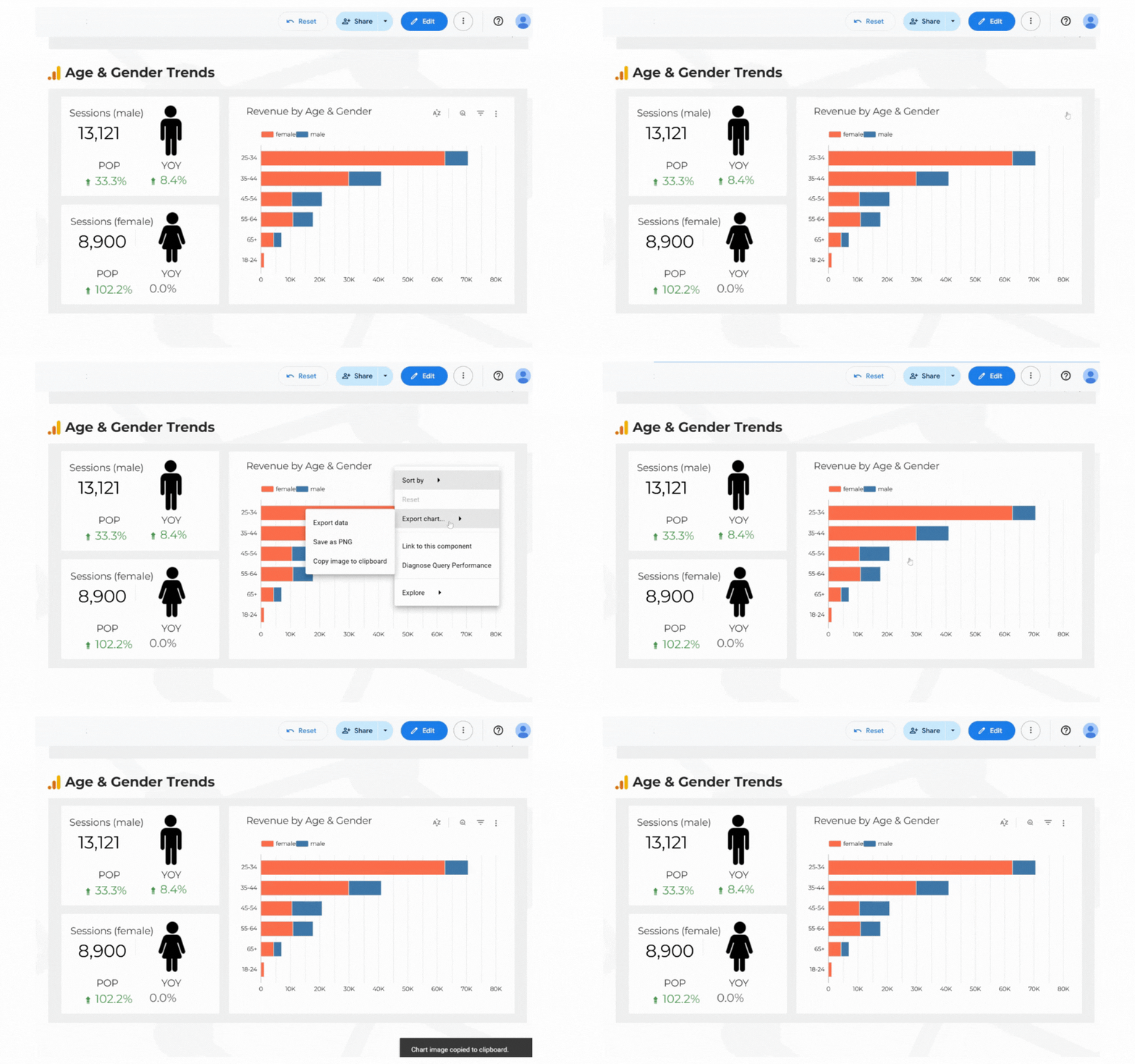
How to Use the Export Options
Begin by opening your report in Looker Studio view mode.
- Hover over the chart you want to export
- Click the three dot menu in the chart header
- Select Export chart…
- Choose Export data, Download PNG, or Copy to clipboard
A Small Update That Saves Real Time
Many reporting improvements come from major platform changes, and others come from small workflow upgrades like this one.
The ability to export data, download chart images, or quickly copy visuals makes it easier to move insights from dashboards into the places where decisions actually happen.
Interested in more ways to improve your analytics process?