
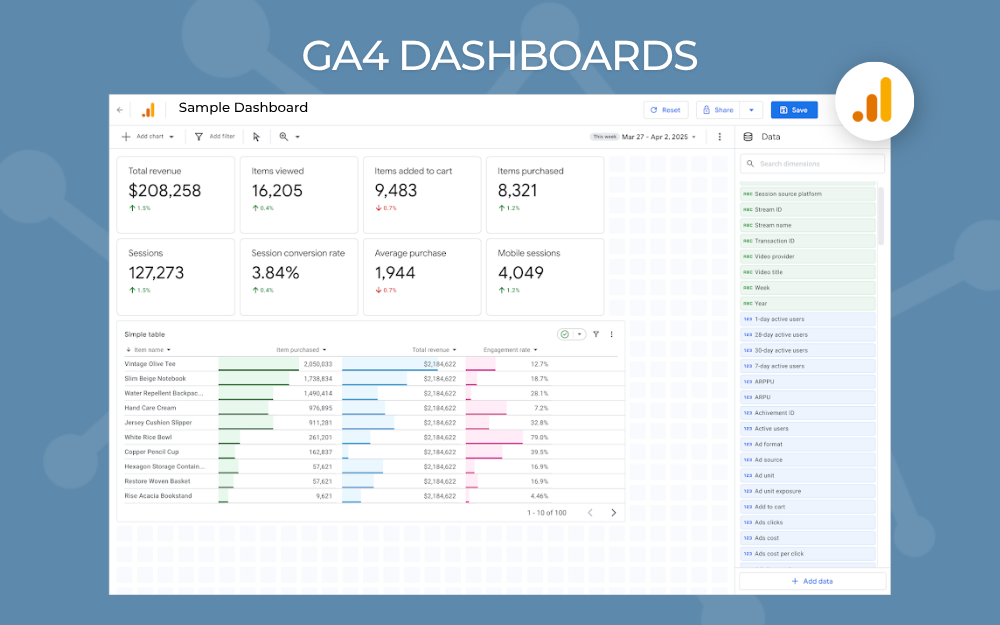
Google Analytics has introduced customizable dashboards directly in GA4, giving you a way to bring key metrics and visualizations together on a single page.
The new dashboards use a grid layout, drag-and-drop chart creation, and direct publishing to the GA4 navigation. For marketers and analysts who want a quick overview of website performance, this offers a simpler alternative to navigating multiple reporting tabs.
Here's a practical walkthrough of how the new canvas works, its technical boundaries, and how to put it to work.
Read more from Google: About GA4 Dashboards.
How Are GA4 Dashboards Different?
GA4 dashboards let you create a customized view of the metrics you monitor regularly directly in the platform. Instead of switching between acquisition, engagement, and conversion reports, you can combine KPIs of each section together.
Key features include:
- Single-page KPI reporting: Combine key metrics and charts in one view.
- Flexible grid layout: Position, align, and resize charts to suit your reporting needs.
- Drag-and-drop editing: Add dimensions and metrics directly to visualizations.
- Direct publishing: Save a dashboard to the GA4 navigation without going through the library.
Supported Chart Types
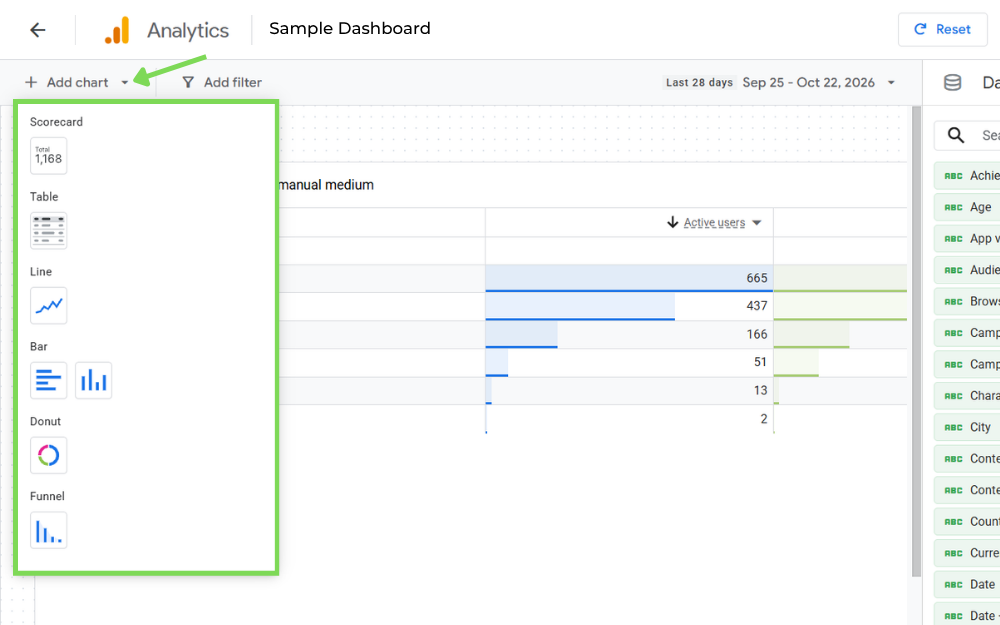
You can mix and match six primary chart types on the grid canvas:
- Scorecards: High-level totals (like revenue or active users) with date range comparisons.
- Tables: Granular, multi-metric lists with inline metric bars and pagination.
- Line charts: Performance over daily, weekly, or monthly intervals.
- Bar charts: Categorical comparisons in vertical or horizontal formats.
- Donut charts: Channel, device, or segment breakdowns.
- Funnel charts: Customer journey tracking to identify drop-off points.
These options give you enough flexibility to build a focused KPI overview without creating a separate report for every metric.
How to Build Your First Dashboard
Creating a dashboard takes only a few minutes. You need an Editor or Administrator role to build and publish, though any users with access to your property can view published reports.
Follow these steps to build a dashboard:
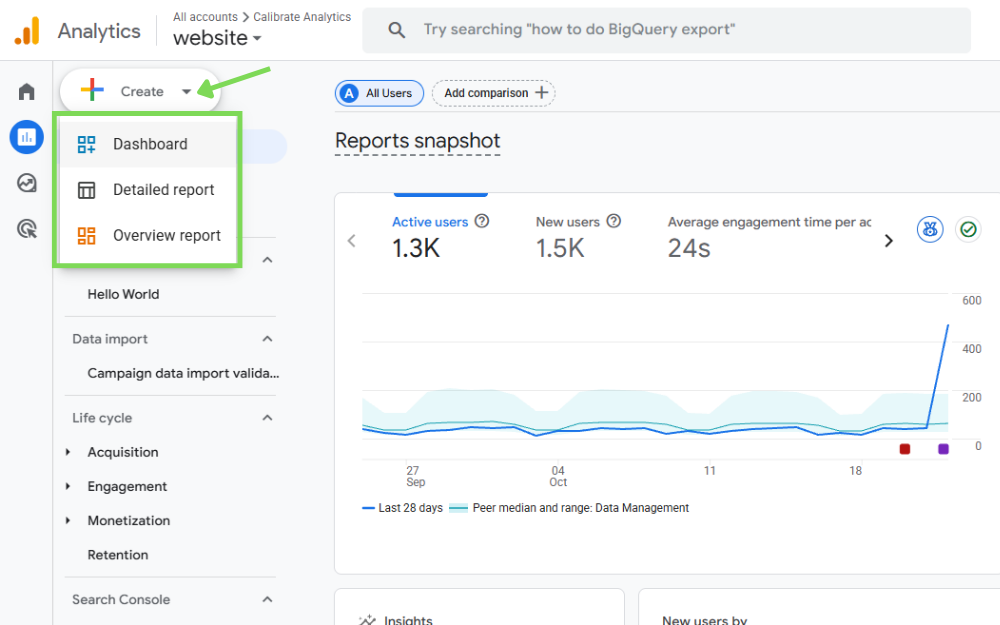
- In GA4, click the Reports icon in the left navigation. Click + Create at the top of the menu, then select Dashboard. If you want to modify an existing view, open it from the Custom dashboards drop down menu and click the Edit icon.
- Drag and drop your preferred visualization cards (e.g., bar or funnel charts) onto the grid canvas. Arrange them by dragging card borders to fit your layout.
- Drag and drop dimensions and metrics directly onto your charts. Use the right configuration panel to adjust chart types, apply metric overrides, or adjust date settings.
- Click Save, then Publish to automatically add the dashboard to the main navigation.
What GA4 Dashboards Don't Do
There are some important limitations to understand before replacing an existing reporting workflow.
- GA4 data only: You can't combine GA4 data directly with external sources, such as CRM records, advertising spend, or booking data.
- Card limits: Standard properties support up to 15 cards per dashboard, while premium properties support up to 30.
- Sharing: Published dashboards are shared at the property level.
- Limited comparison features: Segments and card-level comparisons aren't supported.
- No API access: You can't manage dashboard layouts programmatically through the GA4 API.
These restrictions matter when your reporting requires data from multiple platforms. For example, comparing GA4 conversions with advertising costs, CRM leads, or hotel bookings requires a way to bring those sources together outside the native GA4 dashboard.
For cross-platform reporting, a centralized data warehouse and a separate reporting tool remain useful.
Related article: Organizing Large Amounts of Data from Multiple Sources
GA4 Dashboards vs. Data Studio
It's great to see more dashboard capabilities built directly into GA4. Having your main KPIs in one place makes it easier to check performance without jumping between reports. That said, the features are still basic compared to Data Studio, so GA4 dashboards shouldn't be seen as a replacement for more in depth reporting.
Use GA4 Dashboards: When you want a simple view of website traffic, engagement, conversions, and other events together on a single page.
Use Data Studio: When you need to combine data from multiple sources or create more customized reports. If you want to compare GA4 conversions with Google Ads spend, Search Console performance, CRM leads, ecommerce revenue, or results from other advertising platforms, that's not something you can do natively in GA4.
Maximizing Your GA4 Strategy
Native GA4 dashboards offer a quick, convenient way to track core site performance without leaving the platform. However, if your team relies on blended channel data, custom attribution models, or data warehouse pipelines, a broader reporting architecture remains essential.
If you're figuring out where GA4 dashboards fit into your existing reporting setup, Calibrate Analytics can help you evaluate the right approach for your data and reporting needs. Get in touch if you want to talk through it.